

Dengan menginstal NextCloud Windows Client, kamu dapat menyinkronkan file antara komputer lokal dan server NextCloud dengan mudah. Artikel ini akan memandu kamu proses instalasi dan konfigurasi sinkronisasi.
Persyaratan Sebelum Instalasi
Sebelum memulai, pastikan kamu memiliki:
- Akun NextCloud yang aktif dengan akses server
- Kredensial login (username dan password)
- Alamat server NextCloud, contoh: https://nextcloud.domain.com
- Sistem operasi Windows 10 atau 11
- Koneksi internet yang stabil
Langkah-Langkah Install NextCloud Client di Windows
Kunjungi situs resmi NextCloud di nextcloud.com, Navigasi ke bagian “Downloads” dan pilih “Desktop Clients” Pilih versi Windows dan unduh installer
Jalankan installer yang telah diunduh, akan muncul menu NextCloud Setup Wizard. Next

Custom Setup, biarkan saja default. Next

NextCloud Window Client siap untuk di install. Install

Tunggu sampai proses Installing NextCloud Selesai.

Install NextCloud Client di Windows Selesai, Finish

Menghubungkan NextCloud Client Windows ke Server NextCloud
Setelah instalasi selesai, ikuti langkah-langkah konfigurasi, Buka NextCloud Desktop Client. Klik “Login“.

Masukkan alamat server NextCloud kamu. Next

Untuk Menghubungkan NextCloud Client Windows, akan diarahkan ke browser, Masuk

Masukan kredensial (Username dan Password) akun NextCloud Server. Masuk

Memberikan hak akses NextCloud Desktop Client Windows ke akun Server. Berikan hak akses

NextCloud Desktop Client sudah terhubung, Close Browser.

Synchronize Local Folder Windows dengan NextCloud Server (Sesuaikan dengan Kebutuhan untuk pilihan yang ditawarkan NextCloud). Connect

Secara otomatis Dashboard NextCloud Deskrop Client akan melakukan Synchronize

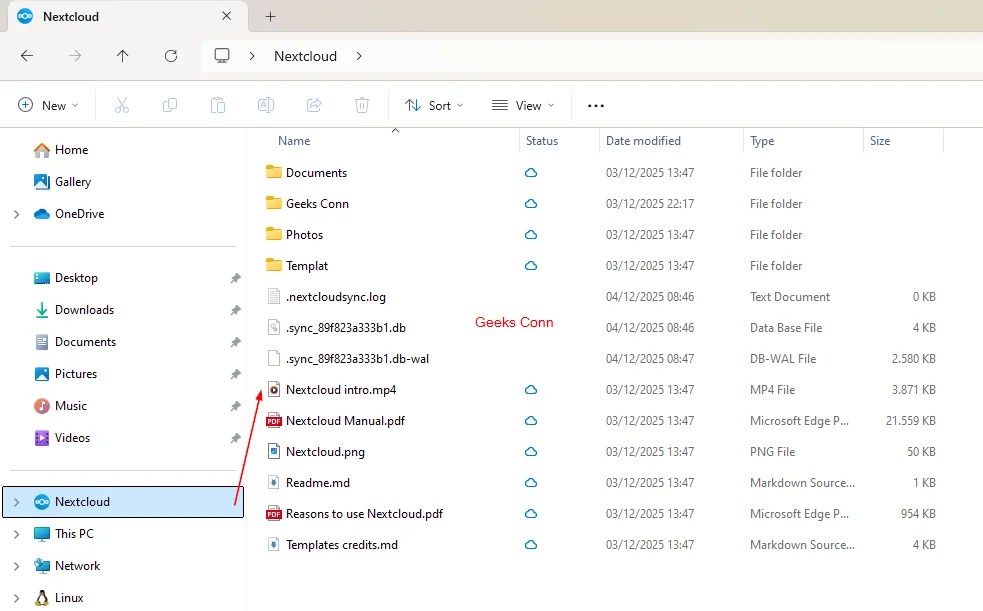
NextCloud Desktop Client sudah ada di File Explorer Windows.
Menginstal dan mengkonfigurasi NextCloud Windows Client adalah proses yang sederhana namun memberikan manfaat besar dalam mengelola dan menyinkronkan file kamu. Dengan mengikuti panduan ini, kamu dapat menikmati penyimpanan cloud pribadi yang aman dan efisien.


